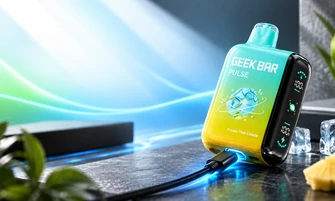

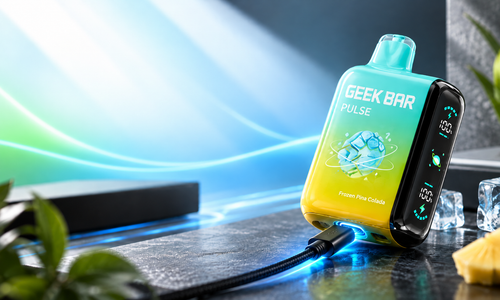
If you want to know how to charge a Geek Bar, start by checking that your model is rechargeable and identifying its charging port. Connect a compatible USB-C cable to the port, plug it into a suitable USB power source, and monitor the battery indicator. Disconnect the cable when the device indicates that charging is complete.
Charging instructions, battery displays, and charging speeds vary by model. In this guide, we'll cover the charging process for Geek Bar Pulse, Geek Bar Pulse X, Geek Bar Pulse 2, Geek Bar Pulse X2, and other models, along with troubleshooting tips and answers to common questions.
Table of Contents
- What Do You Need Before Charging Your Geek Bar?
- Step-by-Step Geek Bar Charging Instructions
- How to Charge Different Geek Bar Models
- How Long Does a Geek Bar Take to Charge?
- How Do You Know When Your Geek Bar Is Fully Charged?
- Why Is Your Geek Bar Not Charging?
- Geek Bar Charging Safety Tips
- Frequently Asked Questions
- Final Thoughts
Explore Our Categories


What Do You Need Before Charging Your Geek Bar?
Before charging your device, confirm that it supports recharging and that you have the correct equipment. Many rechargeable Geek Bar models use a USB-C connection, but you should verify the specifications for your particular model.
Prepare the following items:
- USB-C charging cable: Use an undamaged cable that fits your device's charging port.
- Compatible USB power source: Choose a power adapter or USB port that meets the manufacturer's charging requirements.
- Dry charging port: Check for visible moisture, corrosion, or damage before connecting the cable.
- Suitable charging surface: Place the device on a stable, dry, nonflammable surface away from direct heat.
Check the manufacturer's instructions before charging your device for the first time. Never attempt to recharge a model that isn't designed to be rechargeable.
Step-by-Step Geek Bar Charging Instructions
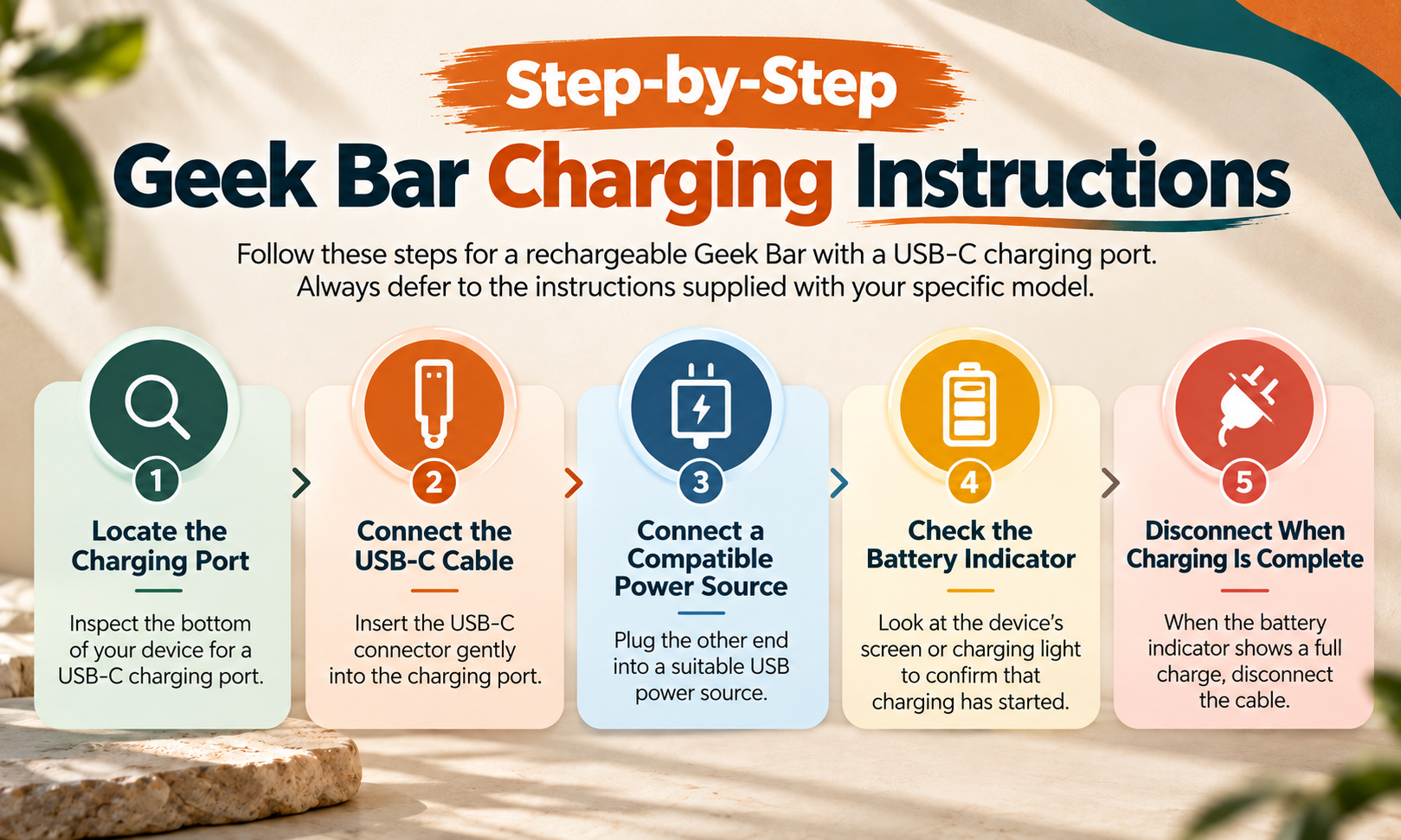
Follow these steps for a rechargeable Geek Bar with a USB-C charging port. Always defer to the instructions supplied with your specific model.
Step 1: Locate the Charging Port
Inspect the bottom of your device for a USB-C charging port. Its exact location may vary by model. If you cannot find the port, consult your product documentation rather than attempting to open the device.
Check the port for visible damage or moisture before connecting a cable. Do not charge a device with a damaged or wet port.
Step 2: Connect the USB-C Cable
Insert the USB-C connector gently into the charging port. It should fit without force. If the connector does not fit, check that you're using the correct cable. Never force it into the port or use a cable with exposed wires or damaged connectors.
Step 3: Connect a Compatible Power Source
Connect the other end of the cable to a suitable USB power source. A compatible wall adapter or computer USB port may work, depending on the manufacturer's specifications. Don't assume that a higher-wattage adapter will make your device charge faster.
Step 4: Check the Battery Indicator
Look at the device's screen or charging light to confirm that charging has started. Depending on the model, you may see a battery percentage, an animated battery icon, or another charging indicator. Refer to your model's instructions if the display is unclear.
For more information about device controls and battery indicators, read our guide on how to use a Geek Bar Pulse.
Step 5: Disconnect When Charging Is Complete
When the battery indicator confirms that charging is complete, disconnect the cable. Avoid leaving your device charging overnight or unattended. If it becomes unusually hot, swells, leaks, or produces an unusual smell, stop charging immediately and discontinue use.
How to Charge Different Geek Bar Models
Several Geek Bar models use USB-C charging, but their displays, battery specifications, and charging performance can differ.
How to Charge Geek Bar Pulse
The original Geek Bar Pulse has a rechargeable battery and a USB-C charging connection.
- Locate the charging port.
- Connect a compatible USB-C cable.
- Plug the cable into a suitable power source.
- Check the battery indicator.
- Disconnect the cable when charging is complete.
The battery indicator helps you monitor the remaining power. If the device stops producing vapor, check its battery and e-liquid indicators. A charged battery does not mean that the device still contains usable e-liquid.
Explore the available Geek Bar Pulse models and flavors to identify the product you own.
How to Charge Geek Bar Pulse X
The Geek Bar Pulse X features a rechargeable battery and a curved display. Connect a compatible USB-C cable to its charging port, then connect the other end to a suitable power source. Monitor the battery display while charging.
Geek Bar's published Pulse X product information advertises quick charging. Verify the specifications for your exact model before relying on a particular charging-time estimate.
Disconnect the cable when the battery indicator confirms a full charge. For model information, visit the Geek Bar Pulse X collection.
How to Charge Geek Bar Pulse 2
The Geek Bar Pulse 2 supports USB-C charging. Connect a compatible cable to the charging port and a suitable power source.
Check the device's display to confirm that charging has started. Its actual charging duration depends on factors such as the initial battery level, cable, and power source.
Use the battery indicator and manufacturer instructions to determine when charging is complete rather than relying on a fixed charging time. You can view available models in the Geek Bar Pulse 2 collection.
How to Charge Geek Bar Pulse X2
To recharge a Geek Bar Pulse X2, first confirm the charging specifications for your exact model.
If your device has a designated USB-C charging port, connect a compatible cable and suitable power source. Monitor the battery indicator and disconnect the cable when charging is complete.
Do not assume that the Pulse X2 has the same charging speed or indicator behavior as the original Pulse or Pulse X. Consult the model's product documentation for specific instructions. See the available Geek Bar Pulse X2 models for product details.
How to Charge Geek Bar Skyview
The Geek Bar Skyview includes a screen that displays battery information and charging progress. Check the manufacturer's instructions for your exact model's charging specifications.
If your Skyview model has a USB-C charging port, connect a compatible cable and power source. Check the display to confirm that charging is underway.
Disconnect the cable when the device indicates a full charge. If the screen does not respond, check the cable and power source before concluding that the battery has failed.
How Long Does a Geek Bar Take to Charge?
Charging time varies by model, battery level, power source, cable, and charging conditions. A device with some battery power remaining will generally need less time than one starting with a depleted battery.
Check the official product specifications for any advertised quick-charging times. A claim that a device reaches 80% in a certain period describes a partial charge, not necessarily the time required to reach 100%.
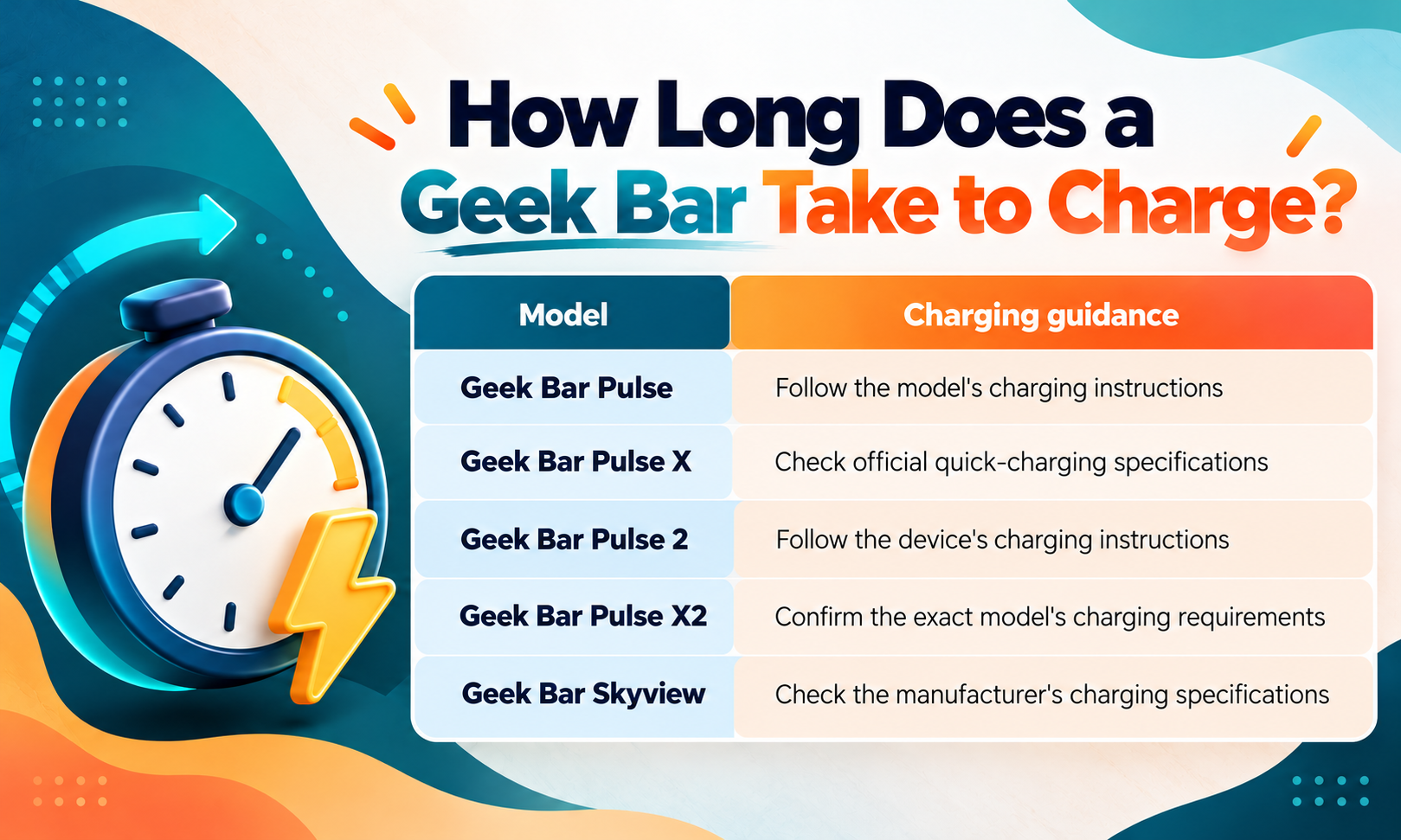
| Model | Charging guidance |
|---|---|
| Geek Bar Pulse | Follow the model's charging instructions |
| Geek Bar Pulse X | Check official quick-charging specifications |
| Geek Bar Pulse 2 | Follow the device's charging instructions |
| Geek Bar Pulse X2 | Confirm the exact model's charging requirements |
| Geek Bar Skyview | Check the manufacturer's charging specifications |
Do not apply one model's charging time to another. Follow the manufacturer's instructions and use the device's indicator to determine when charging is complete.
How Do You Know When Your Geek Bar Is Fully Charged?
The charging indicator depends on your device's design.
- Battery percentage: If the screen displays 100%, it generally indicates a full charge.
- Battery icon: Some models use a graphical battery indicator to show charging progress.
- Charging animation: Certain displays change when charging is complete.
Not every model uses the same light pattern or animation. Check the manufacturer's instructions if you are unsure what an indicator means.
For additional help with device displays and controls, refer to our guide on how to use a Geek Bar Pulse.
Why Is Your Geek Bar Not Charging?
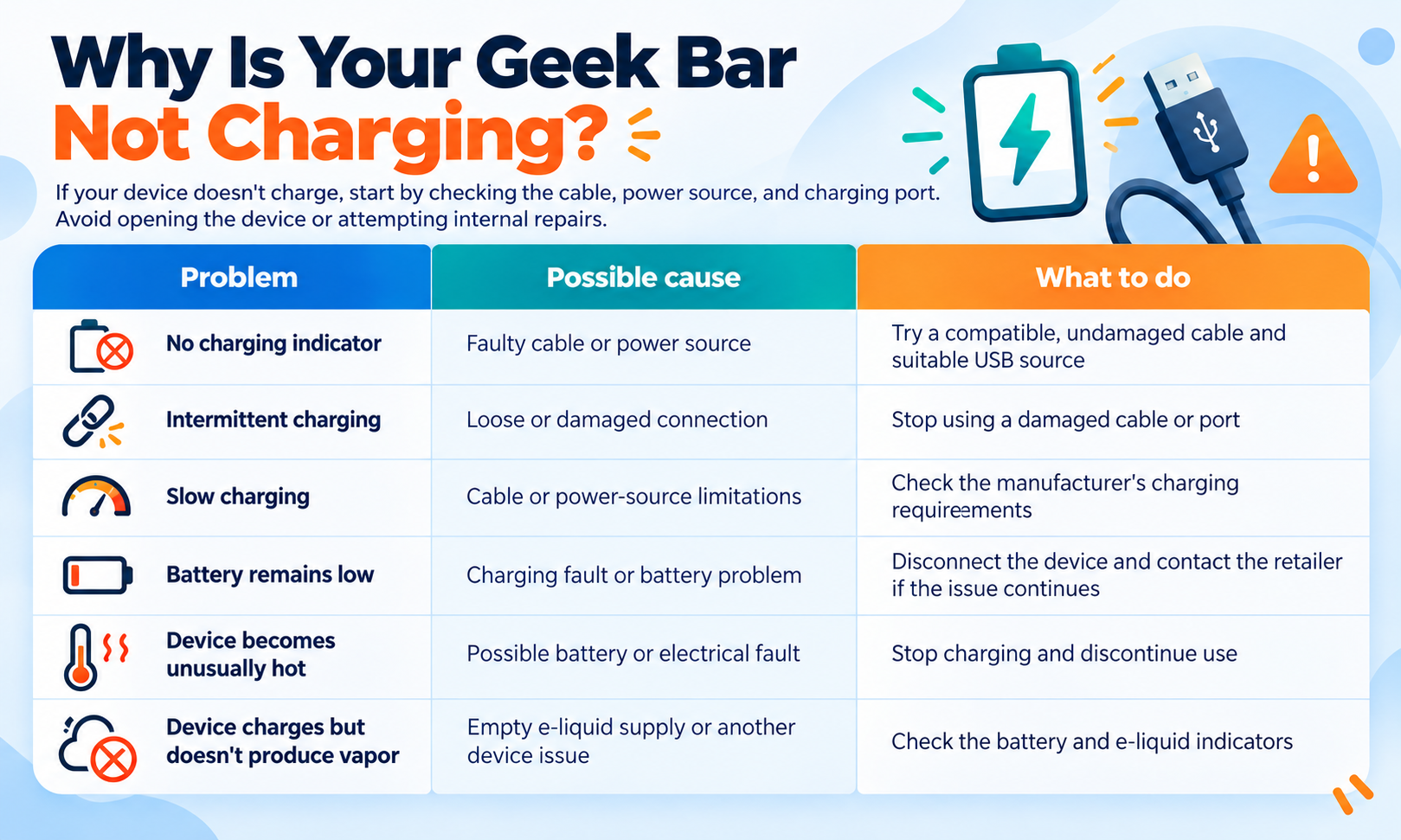
If your device doesn't charge, start by checking the cable, power source, and charging port. Avoid opening the device or attempting internal repairs.
| Problem | Possible cause | What to do |
|---|---|---|
| No charging indicator | Faulty cable or power source | Try a compatible, undamaged cable and suitable USB source |
| Intermittent charging | Loose or damaged connection | Stop using a damaged cable or port |
| Slow charging | Cable or power-source limitations | Check the manufacturer's charging requirements |
| Battery remains low | Charging fault or battery problem | Disconnect the device and contact the retailer if the issue continues |
| Device becomes unusually hot | Possible battery or electrical fault | Stop charging and discontinue use |
| Device charges but doesn't produce vapor | Empty e-liquid supply or another device issue | Check the battery and e-liquid indicators |
Check the Charging Cable
A damaged cable can interrupt the charging connection. If you suspect a cable problem, try another compatible, undamaged cable. Do not use cables with exposed wires or damaged connectors.
Inspect the Charging Port
Disconnect the device before inspecting the port. Look for visible moisture, corrosion, or damage.
Never insert metal objects, sharp tools, or liquids into the port. If debris is lodged inside or the port is damaged, seek assistance rather than attempting internal repairs.
Check the Power Source
A faulty adapter or inactive USB port may prevent charging. Try another suitable power source that meets the manufacturer's requirements. If your device remains unresponsive, contact the retailer or manufacturer.
Know When to Stop Troubleshooting
Do not open the device, replace its internal battery, bypass charging protection, or modify its circuitry.
If your Geek Bar is swollen, cracked, leaking, overheating, or activating unexpectedly, stop using and charging it. Follow local guidance for safe battery disposal.
Geek Bar Charging Safety Tips
Use these precautions whenever you recharge a compatible device.
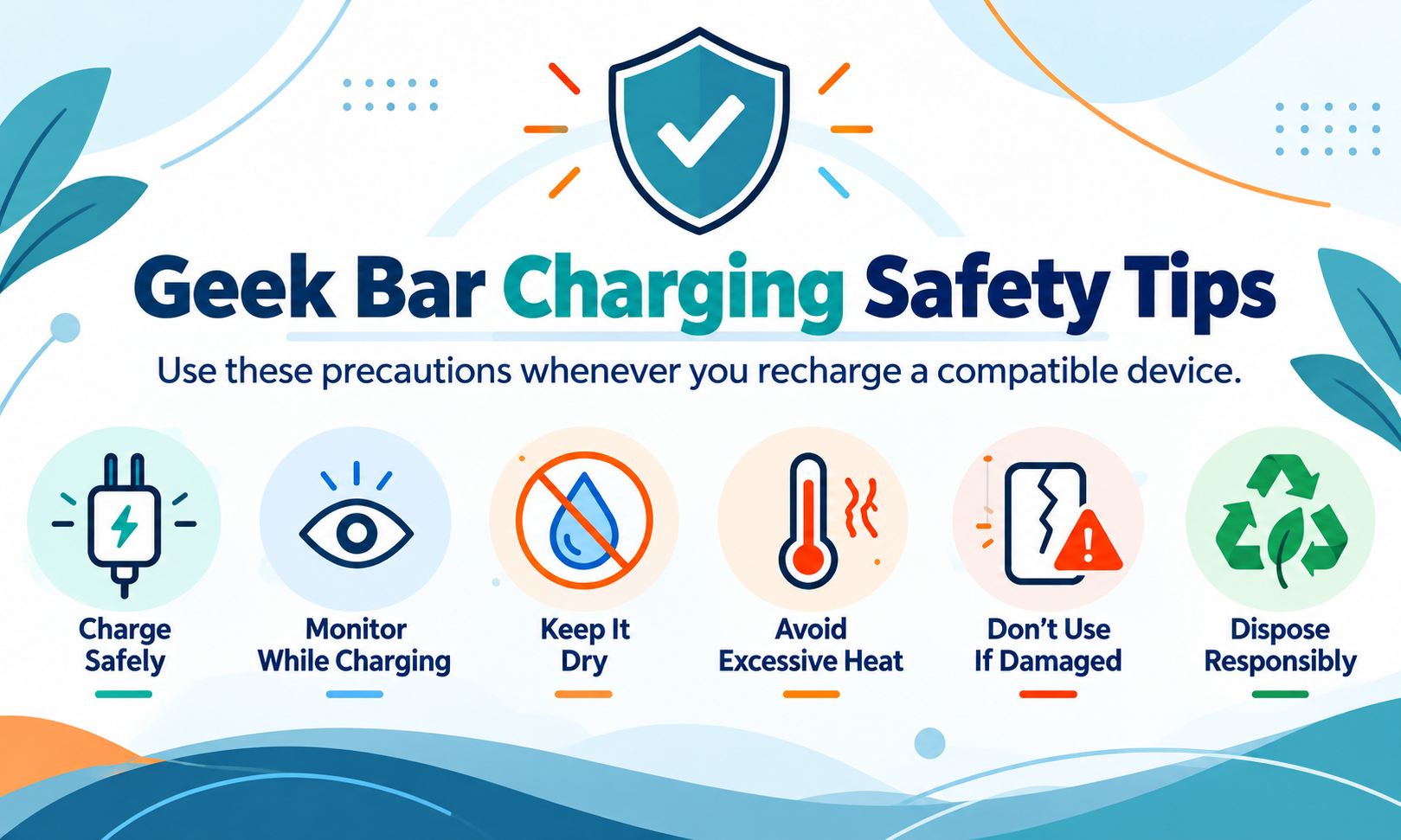
- Use suitable equipment: Choose a compatible power source and an undamaged cable.
- Monitor charging: Avoid overnight or unattended charging, and disconnect the cable when charging is complete.
- Keep the device dry: Never connect a wet device or charge it with a damp port.
- Avoid excessive heat: Charge on a stable, nonflammable surface away from direct heat and flammable materials.
- Stop using damaged devices: Do not charge a device that shows signs of swelling, leaking, or battery damage.
- Dispose of devices responsibly: Follow local electronic-waste and battery disposal requirements instead of placing the device in ordinary household trash.
Frequently Asked Questions
Can You Charge a Geek Bar With a Phone Charger?
Yes, a phone charger may work if its power output meets your Geek Bar's charging requirements. Check the manufacturer's instructions and use a compatible cable and power source.
Can You Use a Geek Bar While It's Charging?
Do not use your Geek Bar while it is charging unless the manufacturer explicitly confirms that your model supports this feature. Follow the model-specific instructions.
Why Is My Geek Bar Blinking While Charging?
A blinking indicator may show charging activity, a low battery, or another device status. Its meaning depends on the model, so consult the manufacturer's instructions for the correct interpretation.
Can You Recharge a Geek Bar More Than Once?
Yes, rechargeable Geek Bar models are designed for multiple charging cycles during their usable life. However, recharging restores battery power only; it does not replenish the e-liquid.
What Happens if Your Geek Bar Won't Turn On After Charging?
Check the charging cable, power source, and battery indicator. If the device remains unresponsive, stop troubleshooting and contact the retailer or manufacturer. Do not open the device or attempt to repair its internal battery.
How Long Does a Geek Bar Take to Charge?
The time depends on the model, remaining battery level, cable, and power source. Follow your device's specifications and monitor its battery indicator instead of relying on a universal charging-time estimate.
How Do You Know When a Geek Bar Is Fully Charged?
Check the battery display or charging indicator. Some models show a full battery percentage, while others use an icon or charging animation. Consult your model's instructions if the indicator is unclear.
Final Thoughts
Charging your Geek Bar starts with identifying your model, using compatible charging equipment, and monitoring the battery indicator. Although many rechargeable models use USB-C, charging speeds and display behavior can differ.
At GeekBarDepot.com, we recommend following your device's official instructions, avoiding damaged charging equipment, and stopping use if you notice signs of battery damage.
For additional model information, browse our Geek Bar Pulse, Pulse X, Pulse 2, and Pulse X2 collections, or read our existing guide on how to use a Geek Bar Pulse.